
Guide · Clubs
How to start a club on RCMap
Create the club, invite the first members, publish the pages they need, and post the first meetup or comp.
Overview
RCMap clubs give an RC group a public or private home for its roster, pages, events, and competitions. Start with the club profile, bring in the first members, then add one useful page and one real event so the club has a reason to come back.
The identity setup is available on the web. The full club workflow for invites, pages, and club events is available from the RCMap app's club detail screen.
Before you start
- An RCMap account you can use as the club owner.
- The club's public name, description, home region, and social link.
- A privacy choice: Public, Private, or Invite.
- One useful page idea and one first event you can publish right away.
-
01
Open Clubs and start a new club
Sign in, open Community on the web or Clubs in the RCMap app, then choose Create club or Start a club.
Use this for a real organized group: a local trail crew, regional comp club, shop team, private build group, or invite-only driving circle.
- Use the club name people already know.
- Decide whether the club should be public, private, or invite-only before you create it.
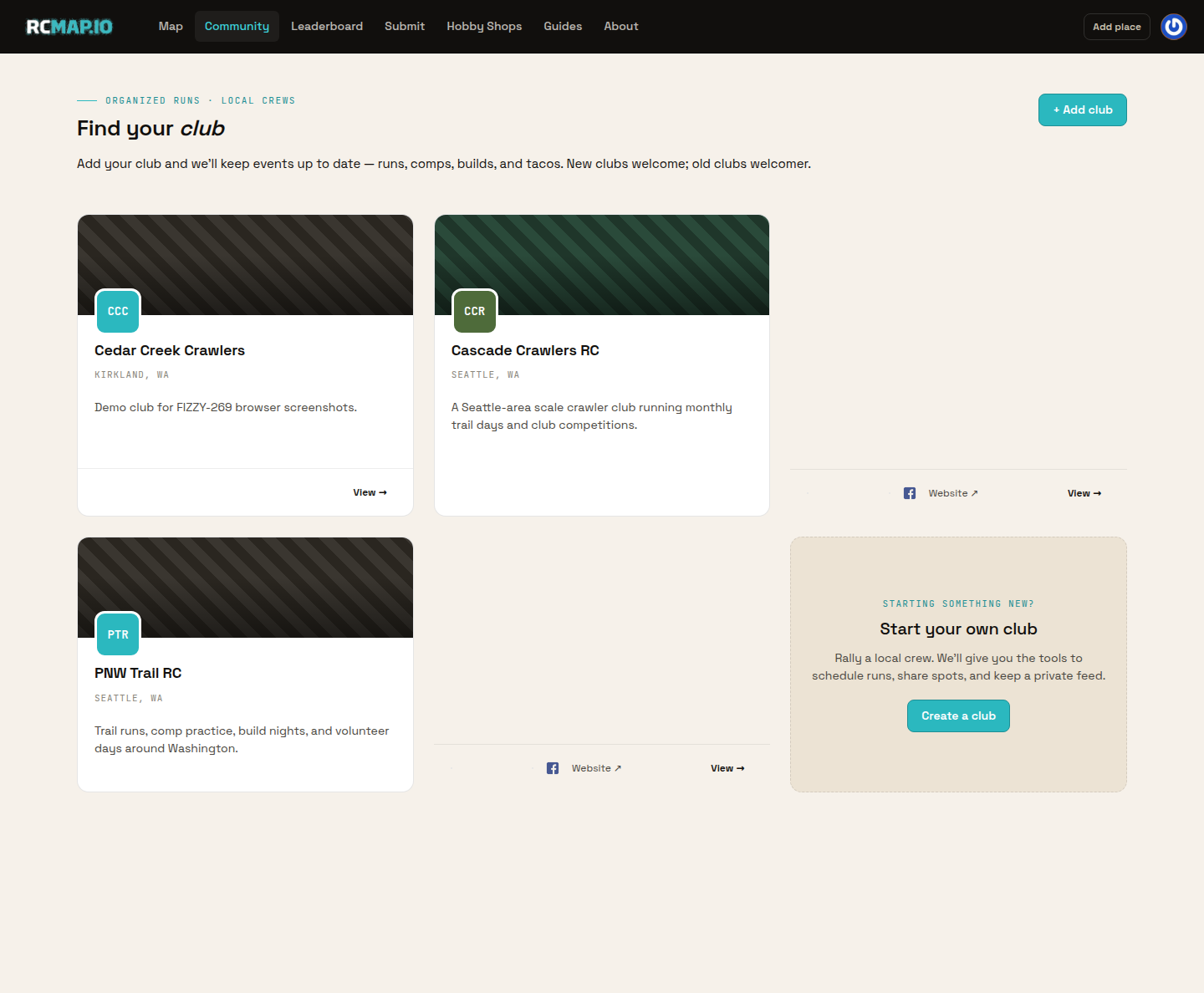
Start from the real Clubs directory. On web, open Clubs and choose Add club. In the RCMap app, open Clubs and tap Start a club. -
02
Fill in the club identity and region
Enter the Club name and a short Description that explains what the group does, where it meets, and who should join.
Set the home city, state, region label, region type, and approximate region size. A city crew might cover 20-60 miles; a statewide club might cover 200-400 miles.
- Keep the description practical: terrain, schedule, membership style, and contact links.
- Use a specific region label such as Washington State instead of a vague national label unless the club is truly national.
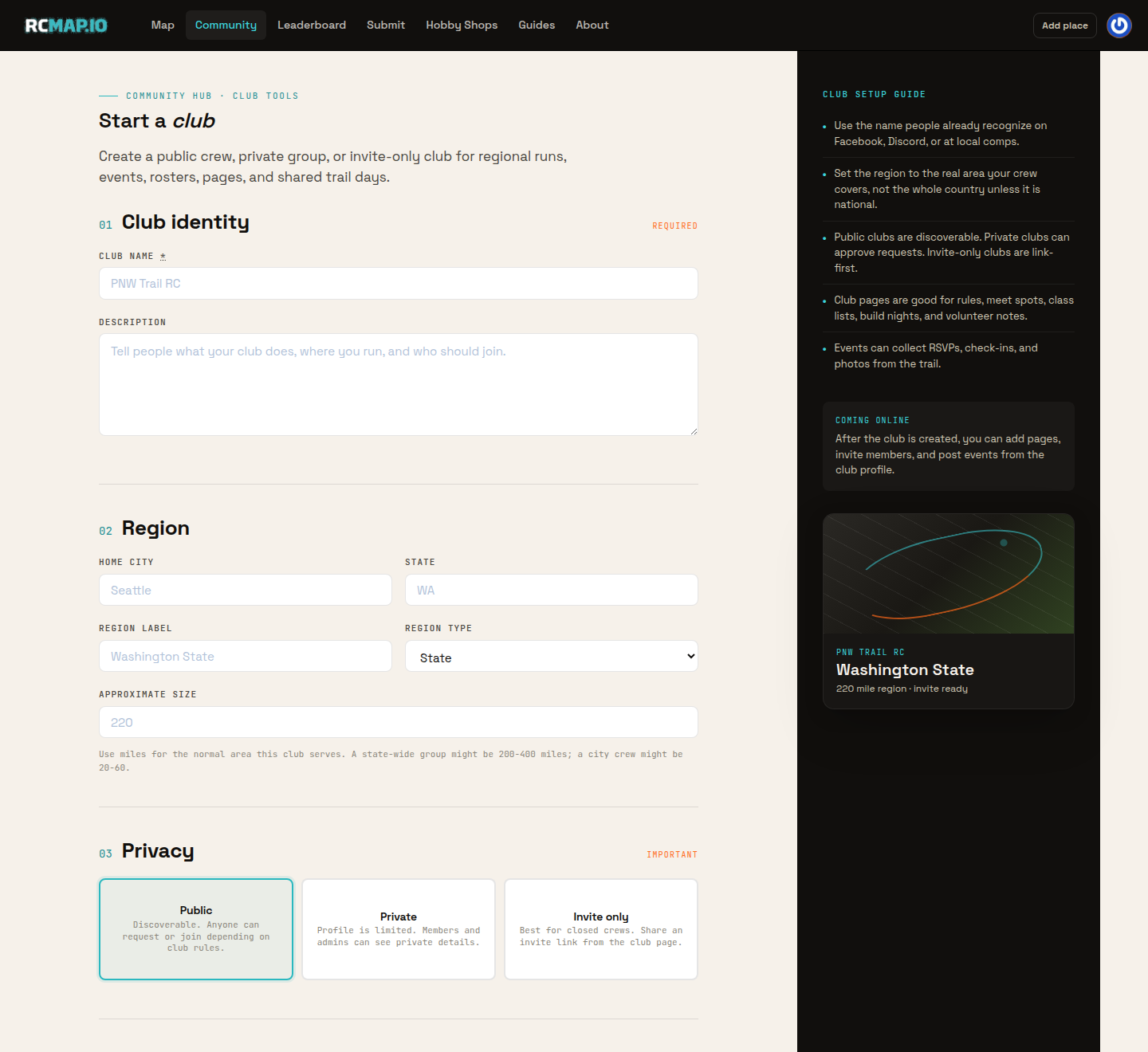
The web club form asks for identity first, then the area the club serves, privacy, and public links. -
03
Choose the privacy model
Choose Public when the club should be discoverable and easy to join. Choose Private when non-members should not see private details. Choose Invite for link-first clubs.
Private clubs can receive access requests. Invite links activate membership for invited drivers, which is useful for closed crews and event staff.
- Public: best for open local groups.
- Private: best for clubs that review requests.
- Invite: best for a roster you grow by sharing a link.
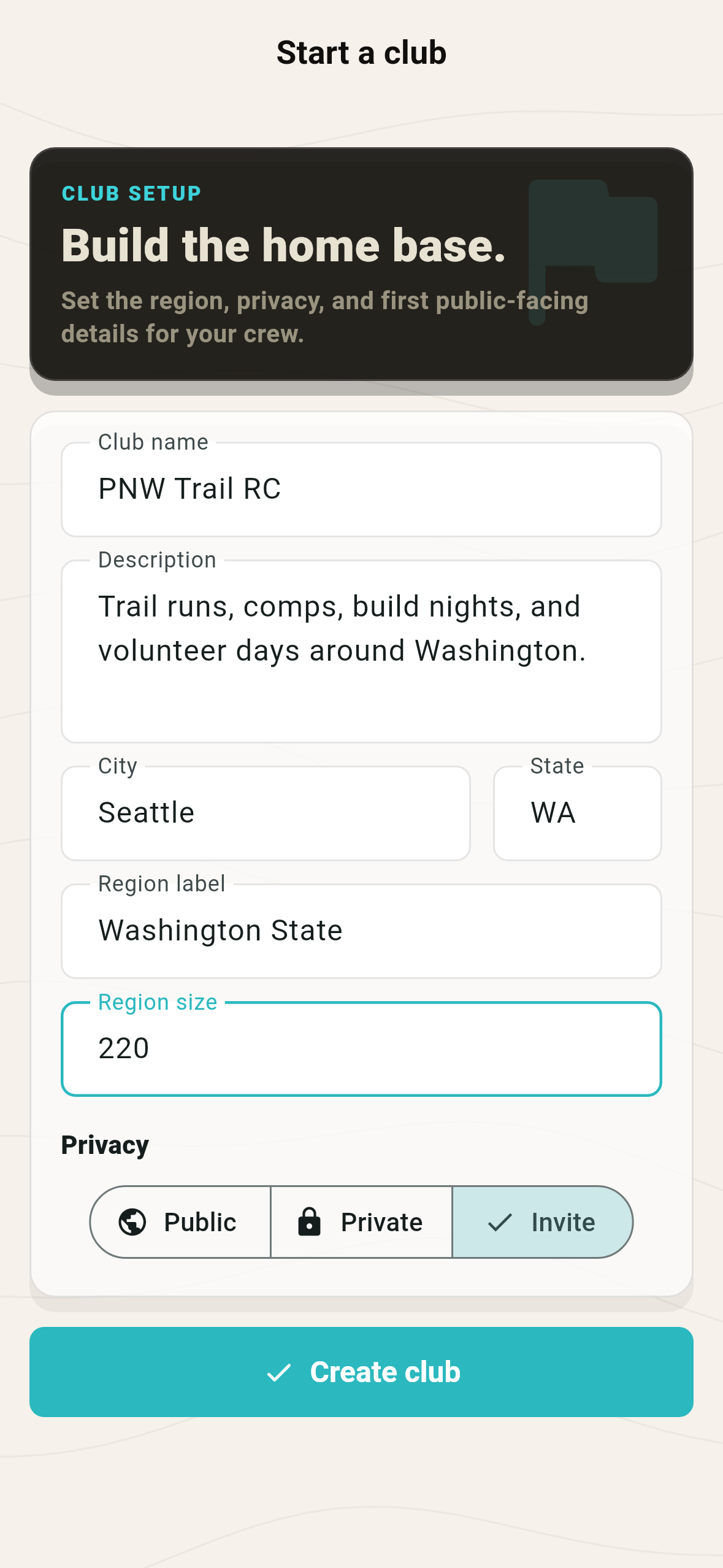
The mobile Start a club form uses the same Public, Private, and Invite privacy choices. -
04
Invite the first members
Open the club detail screen and tap Invite. RCMap shares a link that lands at the public invite page and lets the driver sign in or create an account before joining.
Send the link to the first organizers before you post public events. A small admin group keeps pages, event details, and moderation clean from the start.
- Invite owners or admins first.
- Share the link only where the club wants new members.
- For private clubs, non-members cannot view private club content without access.
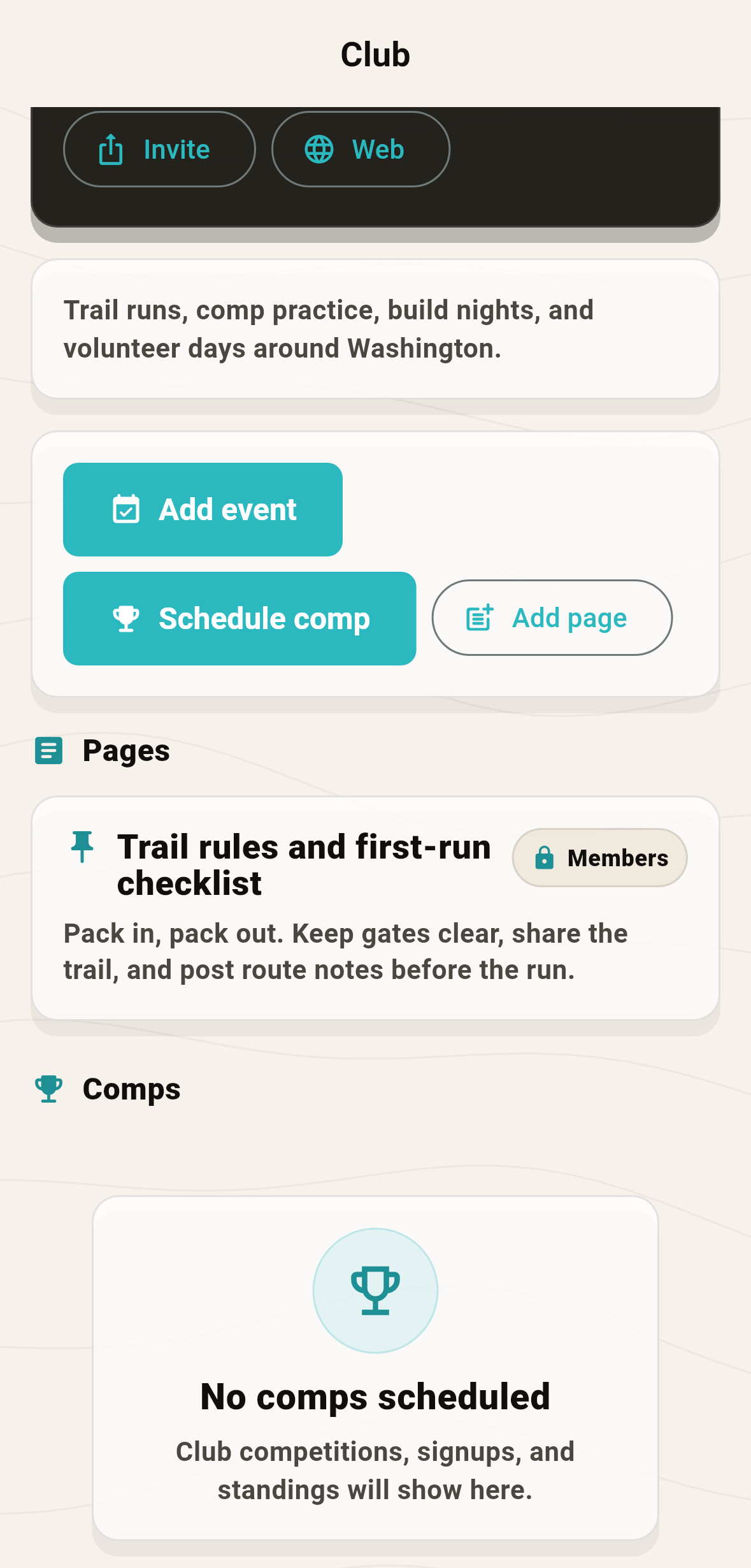
Managers see Invite on the real mobile club detail screen alongside event, competition, and page actions. -
05
Add the pages members need
From the club action panel, tap Add page. Give the page a clear title, write the body, choose Public or Members, and tap Publish page.
Pin the page when it is foundational, such as club rules or a first-run checklist. Member-only pages stay visible to active members and managers.
- Start with one practical page: Trail rules, Where we meet, or New member checklist.
- Use Members for private addresses, gate codes, volunteer rosters, or sensitive route notes.
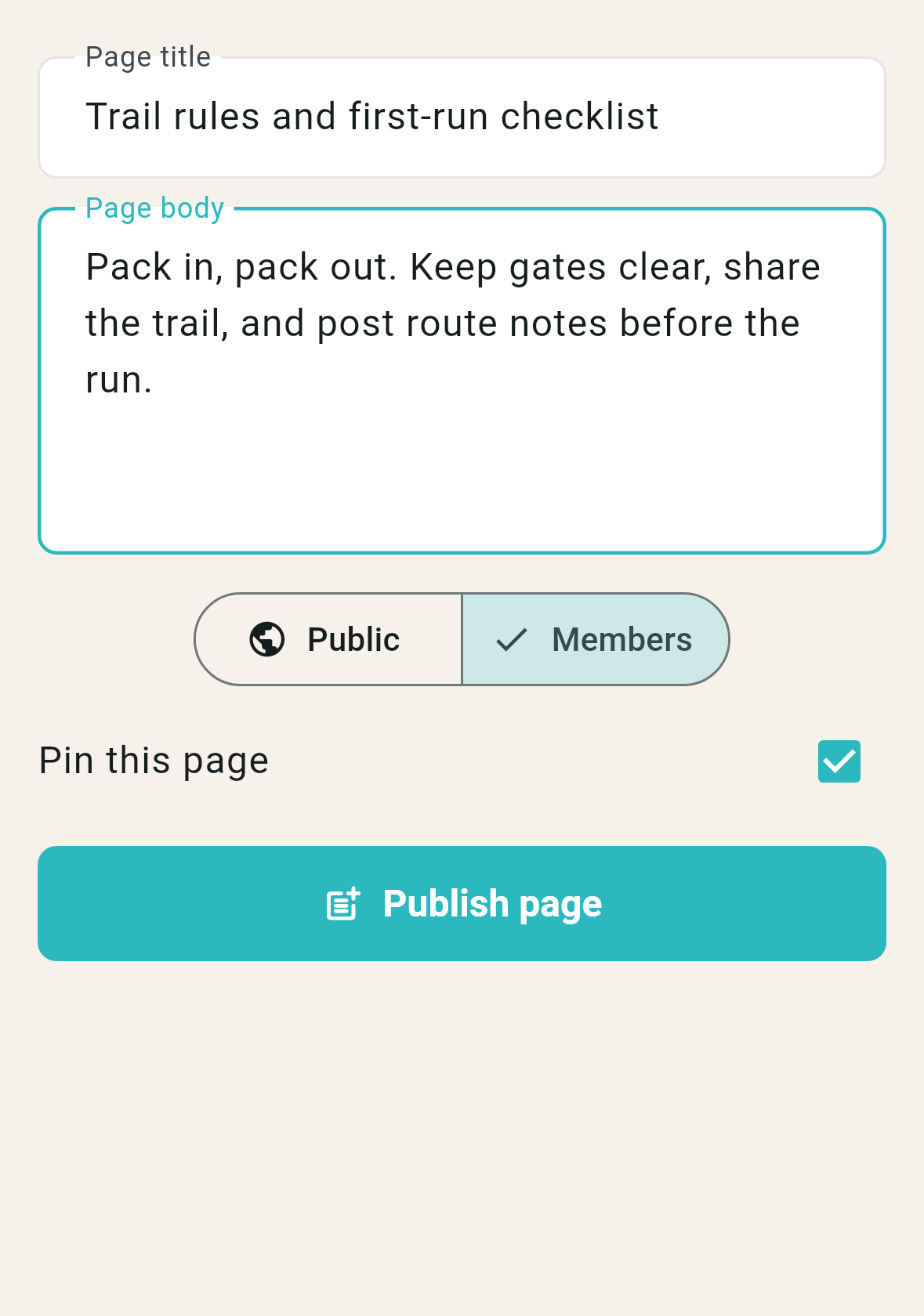
The real Add page sheet supports public or members-only visibility plus an optional pinned page. -
06
Post the first event
Tap Add event, enter an event name, add details, set the start time, choose Meetup or Comp, then tap Add event.
A club event appears on the club detail screen and in activity surfaces for relevant members. Drivers can RSVP, check in, and add photos when the event is active.
- Use Meetup for a normal run or build night.
- Use Comp only when the event should become part of the competition workflow.
- Include meetup spot, timing, terrain, rules, and what drivers should bring.
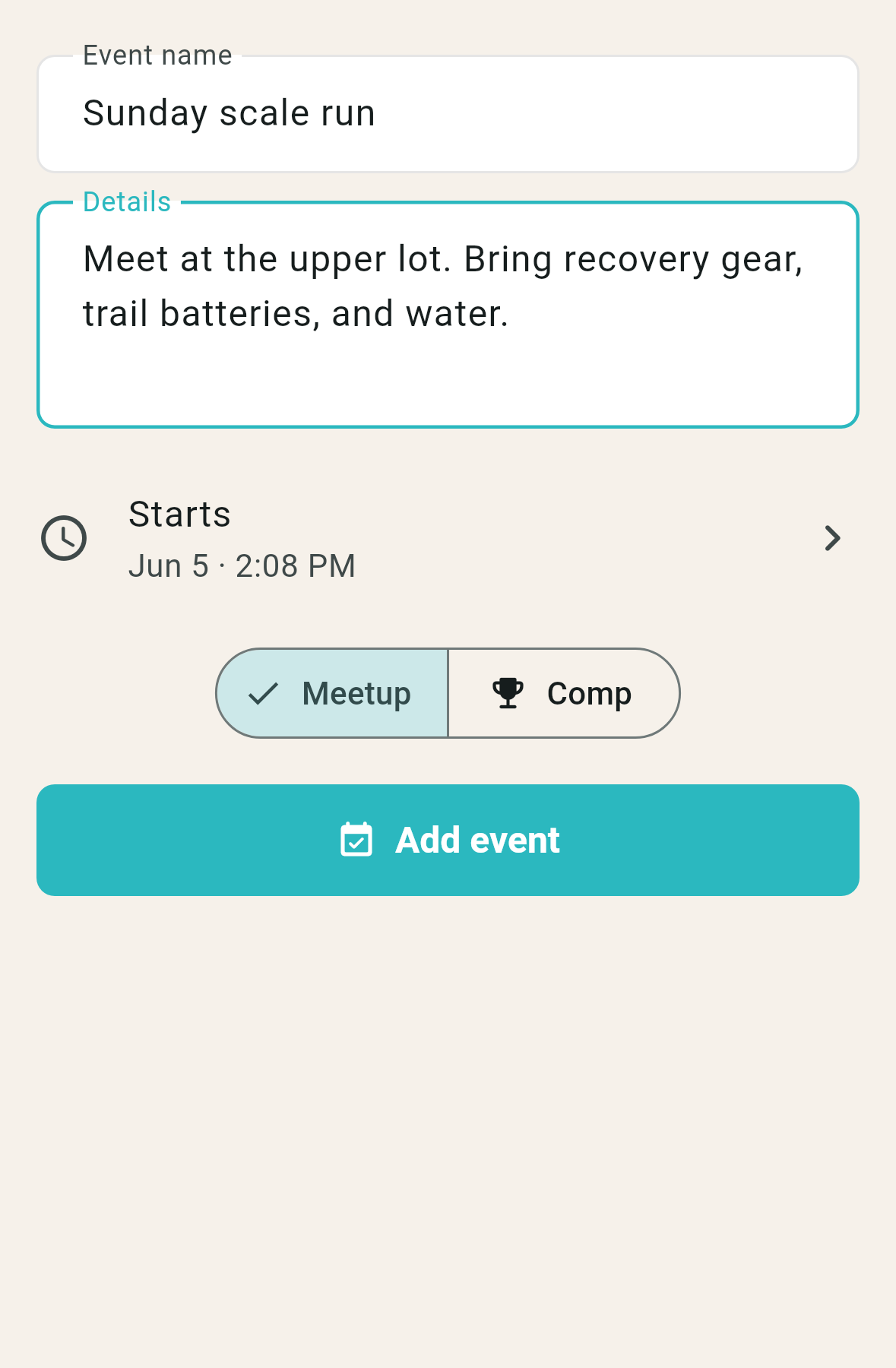
Use the real Add event sheet for the first meetup, trail day, build night, or competition announcement.
Troubleshooting and FAQ
Can I create the club on the web?
Yes. The web Community section has the club creation form. For the full member invite, club page, and event workflow, use the RCMap app club detail screen.
Who can manage club pages?
Club owners, admins, and managers can create and manage club pages. Members can read pages that match their access level.
Can regular members post club events?
Yes. Active club members can add club events. Managers can also schedule competitions from the club.
What is the difference between Private and Invite?
Private clubs hide private club details from non-members and can receive requests. Invite clubs are designed around sharing a link with the exact people you want to add.
What should the first page and first event be?
Start with a rules or new-member page, then post a simple meetup event with the time, place, terrain, and what drivers should bring.
What's next
Open the help page for account, app, or support questions.
Go to help