Guide / Clubs

Managing and moderating your club

Keep your club useful after launch: approve members, publish the right pages, host events, run competitions, and transfer ownership without losing control of the community.

9 minute read Last updated June 4, 2026 For club owners and admins

Overview

Club management in RCMap is built around active membership and clear ownership. Owners and club admins can keep the profile current, publish pages, host meetups, and schedule competitions. The owner, or a site moderator, keeps final control over destructive actions such as deleting a club or transferring ownership.

Some controls are app-first today. If you do not see a members, invite, page, or transfer control on the web profile, open the current RCMap app. If the control is still missing, contact RCMap support and include the club name.

Before you start

  • Use the right account. Sign in with the account that owns the club or has an active admin role.
  • Know the privacy mode. Public clubs are open to join; private and invite-only clubs need manager review or an invite link.
  • Keep one owner active. The owner cannot leave before another active member takes ownership.
  • Separate pages from events. Pages are durable reference material; events and competitions are time-based.
01

Confirm that you can manage the club

Open the club profile from Community or from the RCMap app. A manager sees controls such as Edit, Invite, Add page, Add event, or Schedule comp. If those controls are missing, you are either signed out, not an active member, or not an owner/admin.
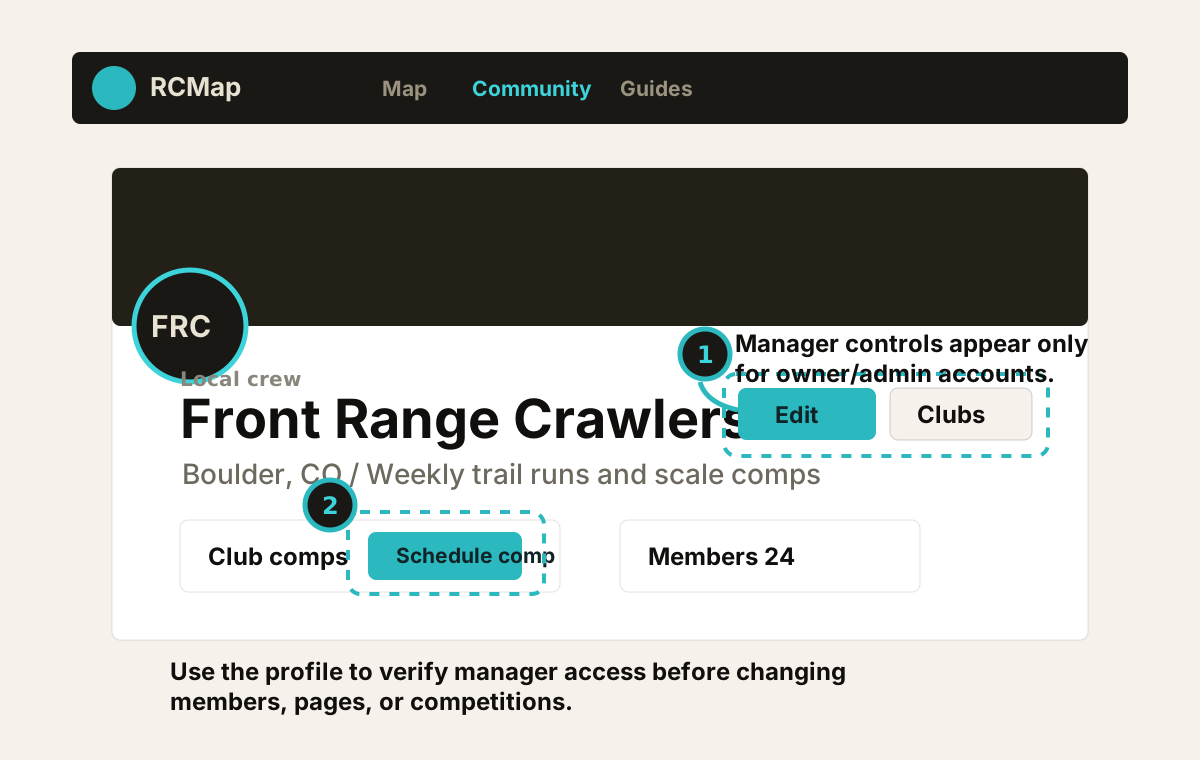
Annotated RCMap club profile showing the Edit and Schedule comp controls for a manager
Manager controls appear on the club profile and app detail screen when your role can manage the club.
02

Keep the club profile and privacy current

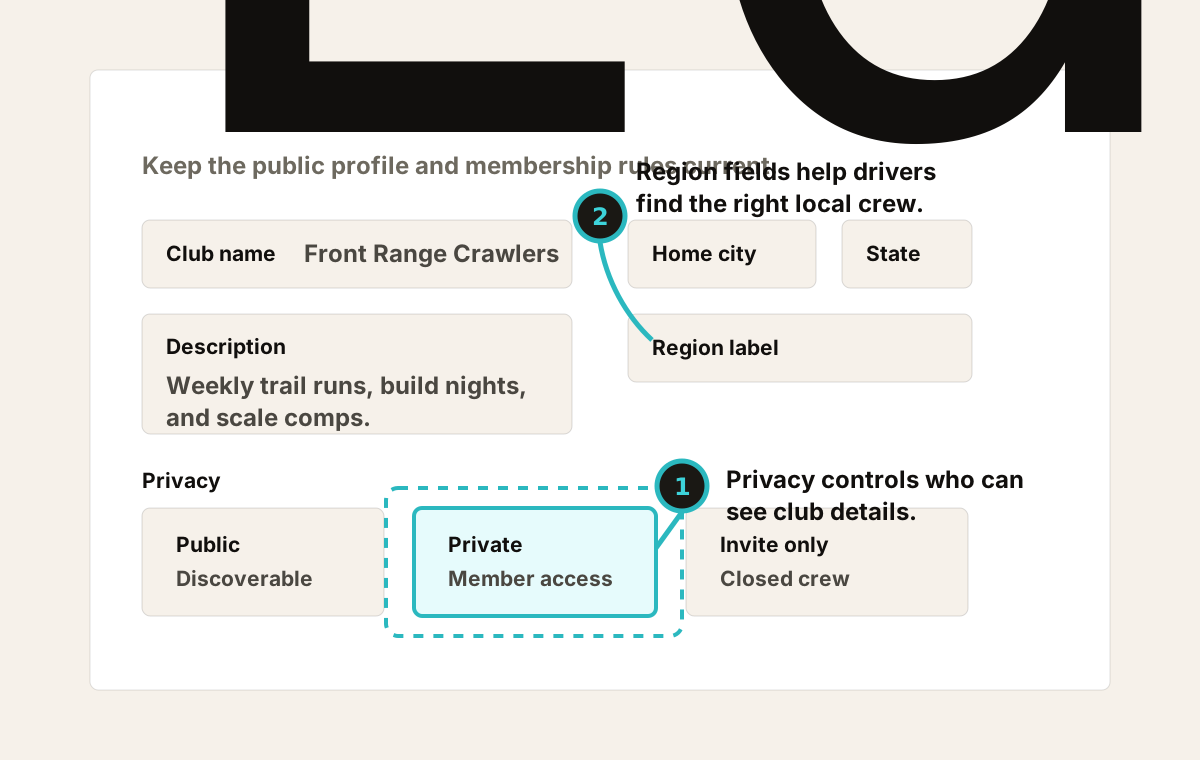
Choose Edit to update the club description, home city, region label, service radius, website, and social link. Use the description for stable public context: where you run, what kind of RC you focus on, how often you meet, and who should join.

Set Public when anyone can join. Set Private when the club should be hidden from non-members. Set Invite only when the profile can be shared but membership should come through a manager-sent link.

Privacy affects visibility. Private clubs hide their profile, roster, pages, and competitions from people who are not active members.
Annotated club settings form showing region, privacy, and social link fields
The club settings page is the source of truth for public profile copy and privacy.
03

Review membership requests and roles

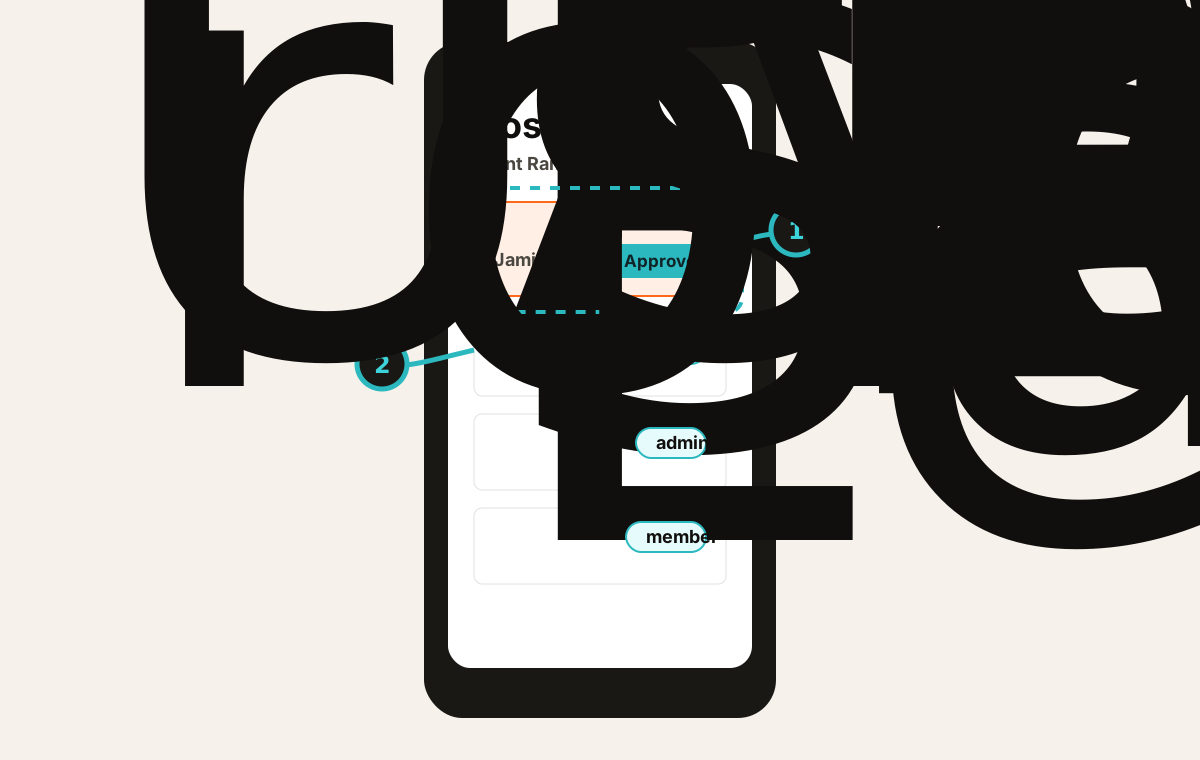
Public clubs add a signed-in driver as an active member immediately. Private clubs create a Pending request. Managers can approve the request, remove it, or block the person if the request should not be repeated.

Keep roles narrow. Owner is the single accountable club owner. Admin can manage the club day to day. Member can see members-only material and participate without changing settings.

Annotated member-management surface showing pending requests and owner, admin, and member roles
Use pending, active, and blocked status deliberately so the roster stays accurate.
04

Publish and moderate club pages

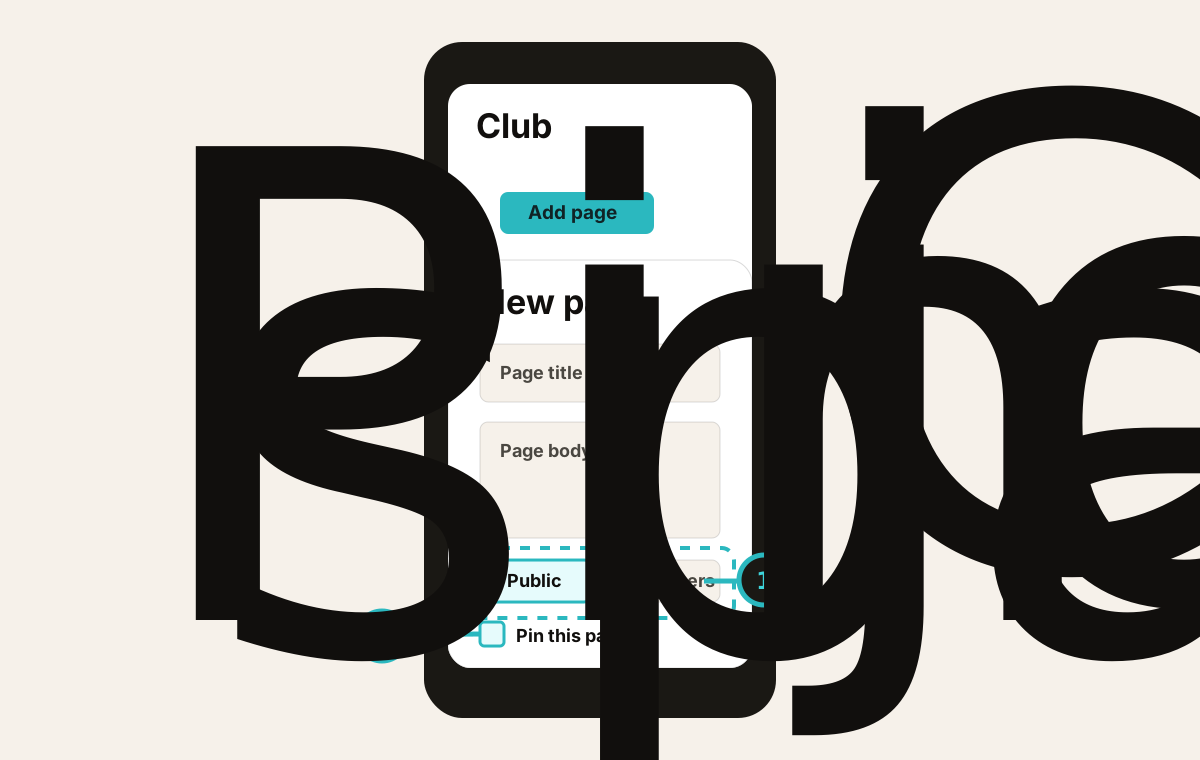
Use Add page for durable reference material: rules, trail notes, parking instructions, class lists, volunteer notes, and recurring meetup details. Choose Public for material that helps people decide whether to join. Choose Members for roster details, gate codes, private meet spots, or anything that should stay inside the club.

Pin only the page that should sit at the top right now. A pinned page notifies the club, so treat it like an announcement rather than a formatting preference.

Annotated Add page sheet showing title, body, public or members visibility, pin option, and Publish page button
Pages are best for reference material that should stay findable after the event date passes.
05

Host events from the club

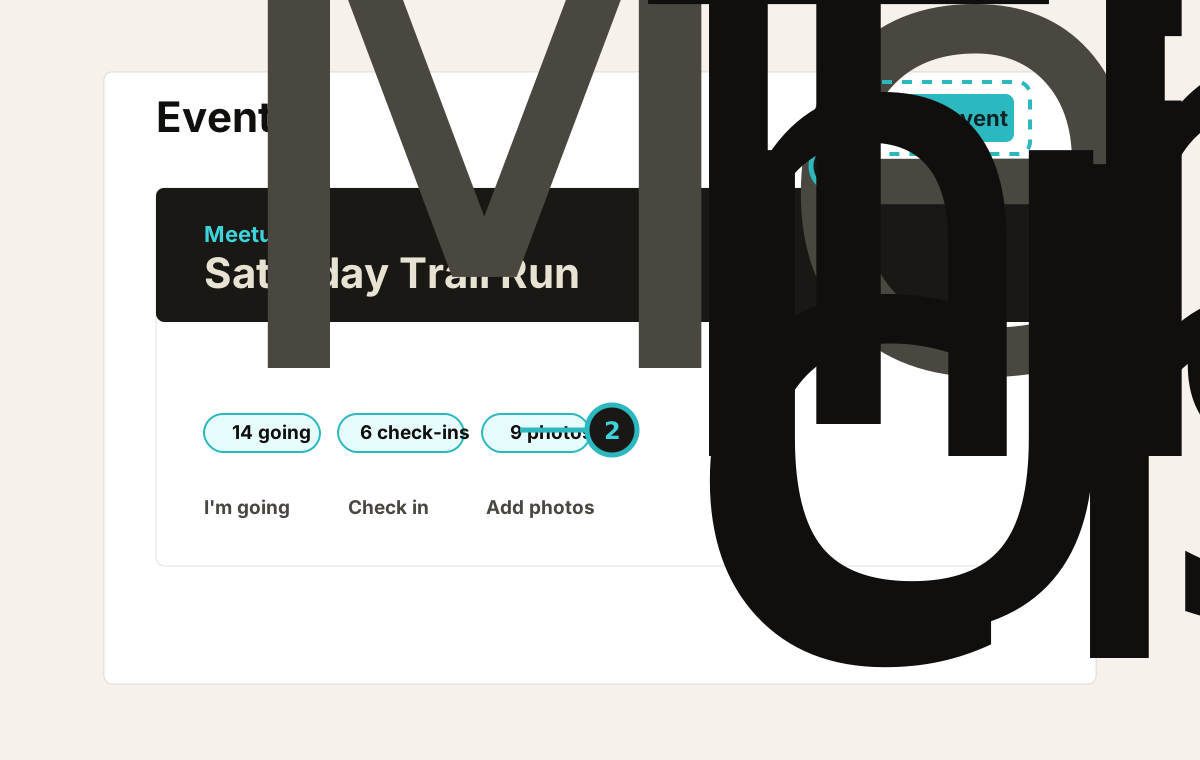
Use Add event for trail days, build nights, meetups, race nights, and casual gatherings. Give the event a specific name, time, and description. Mention what drivers should bring, whether the route is beginner-friendly, parking details, and what happens if weather changes the plan.

Members can mark I'm going, Check in on site, and add photos when they are allowed to contribute. This creates a useful history for the club without turning every event into a competition.

Annotated club event card showing Add event, RSVP, Check in, and Add photos controls
Events are lightweight. Use them whenever attendance and photos matter more than scoring.
06

Schedule and run competitions

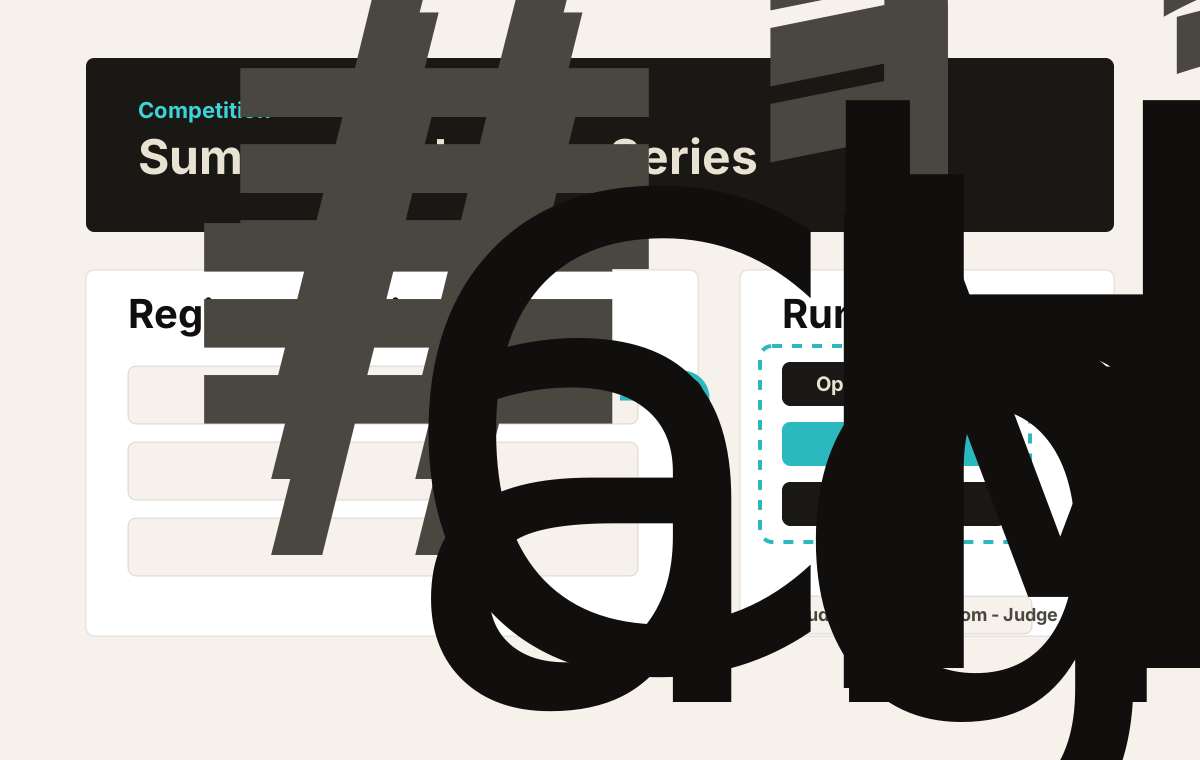
Use Schedule comp when you need registrations, divisions, courses, scoring, standings, or assigned helpers. Set the competition name, start time, divisions/classes, course count, gates, time limit, and penalties before opening registration.

On the competition page, managers can Open registration, Start comp, assign judges or tech inspectors, check in entries, export standings, and Publish final when results are complete.

Annotated competition management screen showing setup status, run day tools, helpers, and final standings actions
Competition controls are reserved for managers and assigned helpers so scoring stays trustworthy.
07

Transfer ownership before stepping away

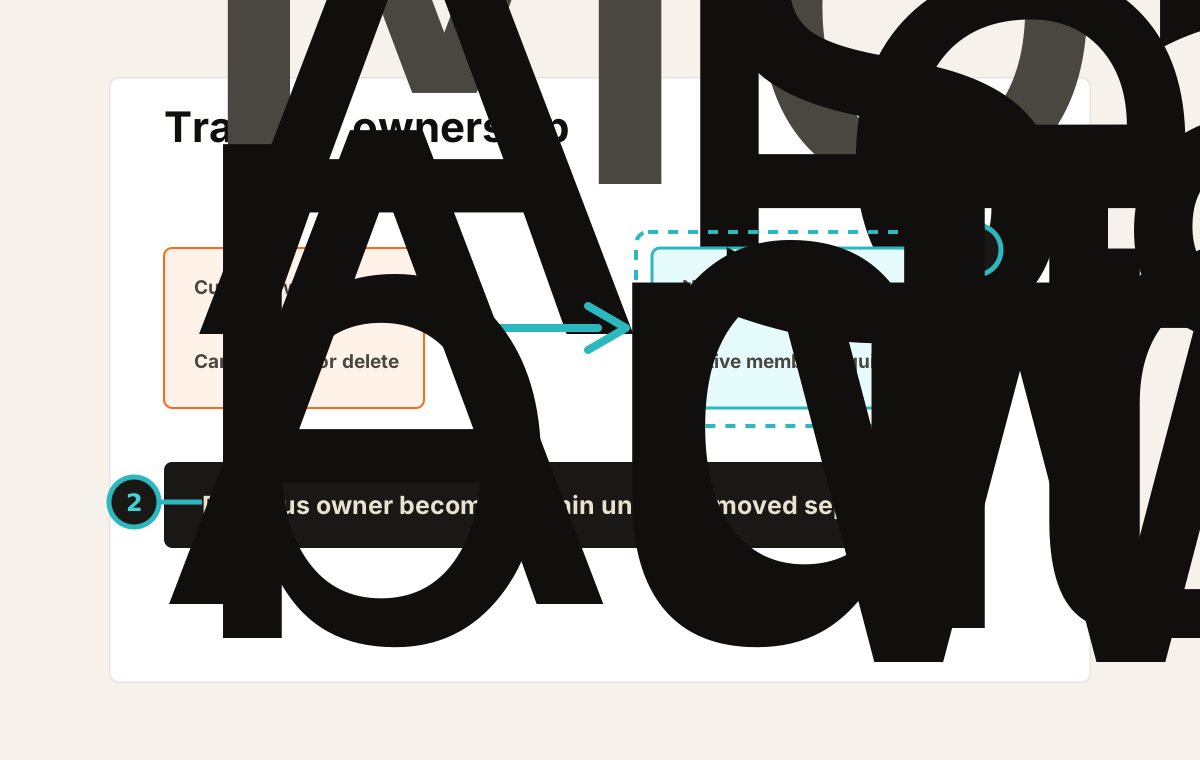
Transfer ownership only to an active member who is ready to run the club. When ownership transfers, the new owner becomes the accountable owner and previous owners are kept as admins unless they are removed separately. If you are the owner, do this before leaving the club.

Club admins can manage most day-to-day work, but they cannot delete the club. Deleting a club removes nested club data, so RCMap restricts that action to the owner or a site moderator.

Do not transfer to an inactive account. Pick someone who can sign in, receives club notifications, and understands current events and competitions.
Annotated ownership-transfer flow showing current owner, active member target, and owner-only restriction
Ownership transfer is intentionally stricter than ordinary admin changes.

Troubleshooting and FAQ

Why don't I see the Edit, Invite, Add page, or Schedule comp controls?

You need to be the club owner, an active club admin, or a site moderator. If you recently joined, ask the current owner to confirm your role is active and set to admin.

What is the difference between public, private, and invite-only clubs?

Public clubs are discoverable and can be joined directly. Private clubs hide details from non-members and create pending requests. Invite-only clubs are best for closed crews that add people through a shared invite link.

Do pending members appear in the public roster?

No. RCMap counts and displays active members. Managers can review pending requests separately so people who have not been approved are not shown as full members.

Can a club admin delete the club or transfer ownership?

No. Admins can manage the profile, pages, members, events, and competitions. Destructive actions are restricted: deleting a club and transferring ownership require the current owner or a site moderator.

Who can see members-only club pages?

Active club members and managers can see members-only pages. Public pages remain visible anywhere the club itself is visible.

Why can someone see a competition but not open its club?

Competition visibility follows the club. Private club competitions are visible only to active members and managers; public club competitions are visible to everyone.

What's next