Guide ยท Competitions

Running a competition

Use RCMap on event day to check in drivers, tech entries, score runs, watch live standings, and publish final results.

9 min read

Overview

Use this guide during a live club competition, after the event has already been created in RCMap. It covers the working flow for registration table staff, tech inspectors, judges, scorekeepers, and competition directors.

By the end, entries are checked in, trucks are teched, runs are scored and reviewed, live standings are accurate, and final results are published for the official event record.

Before you start

  • The hosting club and competition already exist in RCMap.
  • Registration is open or ready to open, and drivers know which division they should enter.
  • Courses, gates, time limits, and scoring defaults have been reviewed.
  • Judges, scorekeepers, organizers, and tech inspectors have RCMap accounts and the right roles.
  • Workers know who has authority to resolve scoring questions before final results are published.
Recommended event-day order

Check in entries first, tech trucks second, score runs third, review standings fourth, and publish final results last.

01

Open the competition page and confirm the event is ready

Start from the competition page. Confirm the title, status, schedule, division list, course setup, and registered driver count before workers begin check-in.

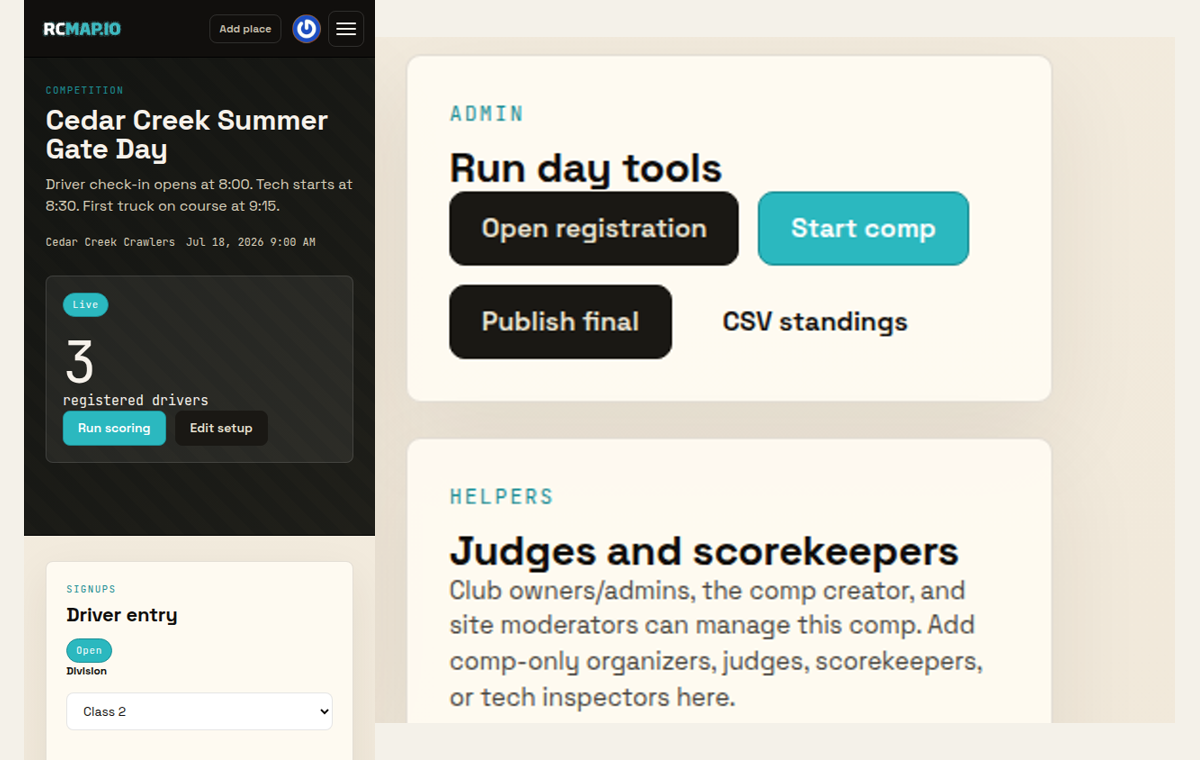
Managers use Run day tools to open registration, start the comp, publish finals, or export standings. Assigned judges also see Run scoring when they have scoring access.
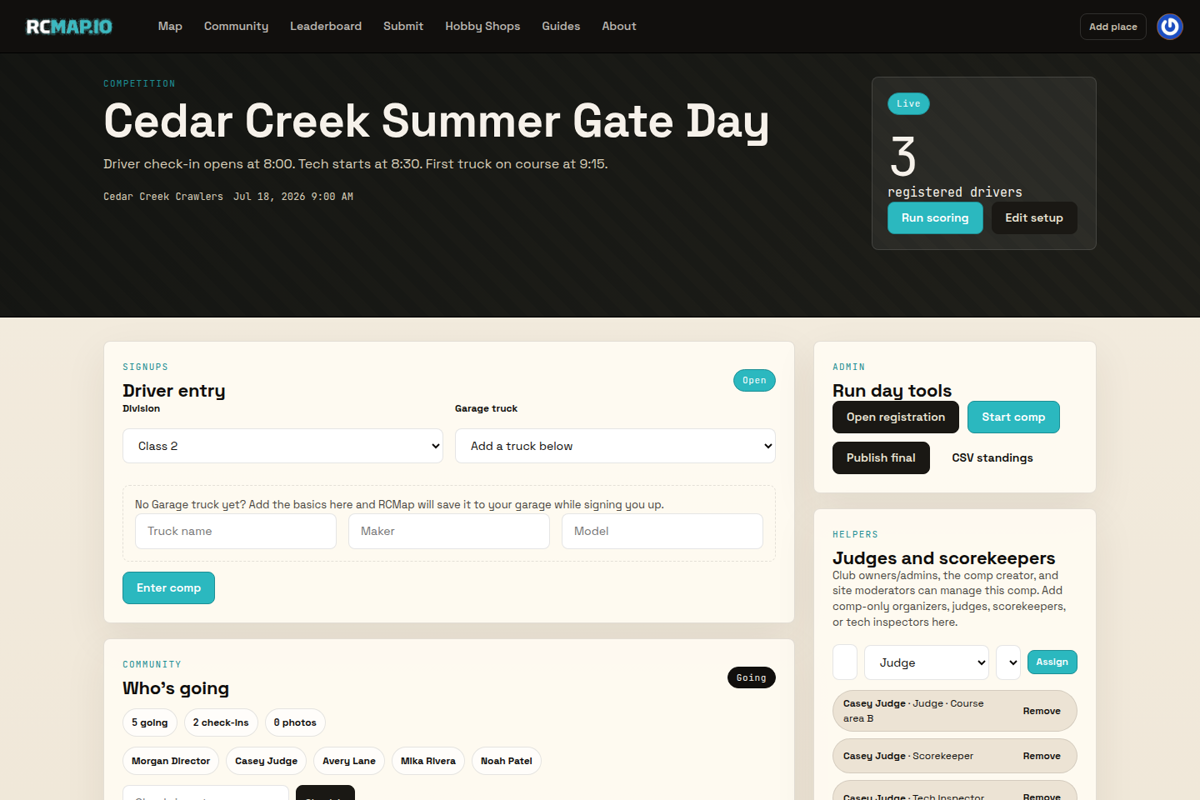
Desktop RCMap competition page with the RCMAP.IO topbar, live status, Run scoring button, Driver entry area, and Run day tools.
Real desktop product capture: the competition page is the event-day command center for managers, workers, and drivers.
02

Check in drivers and entries

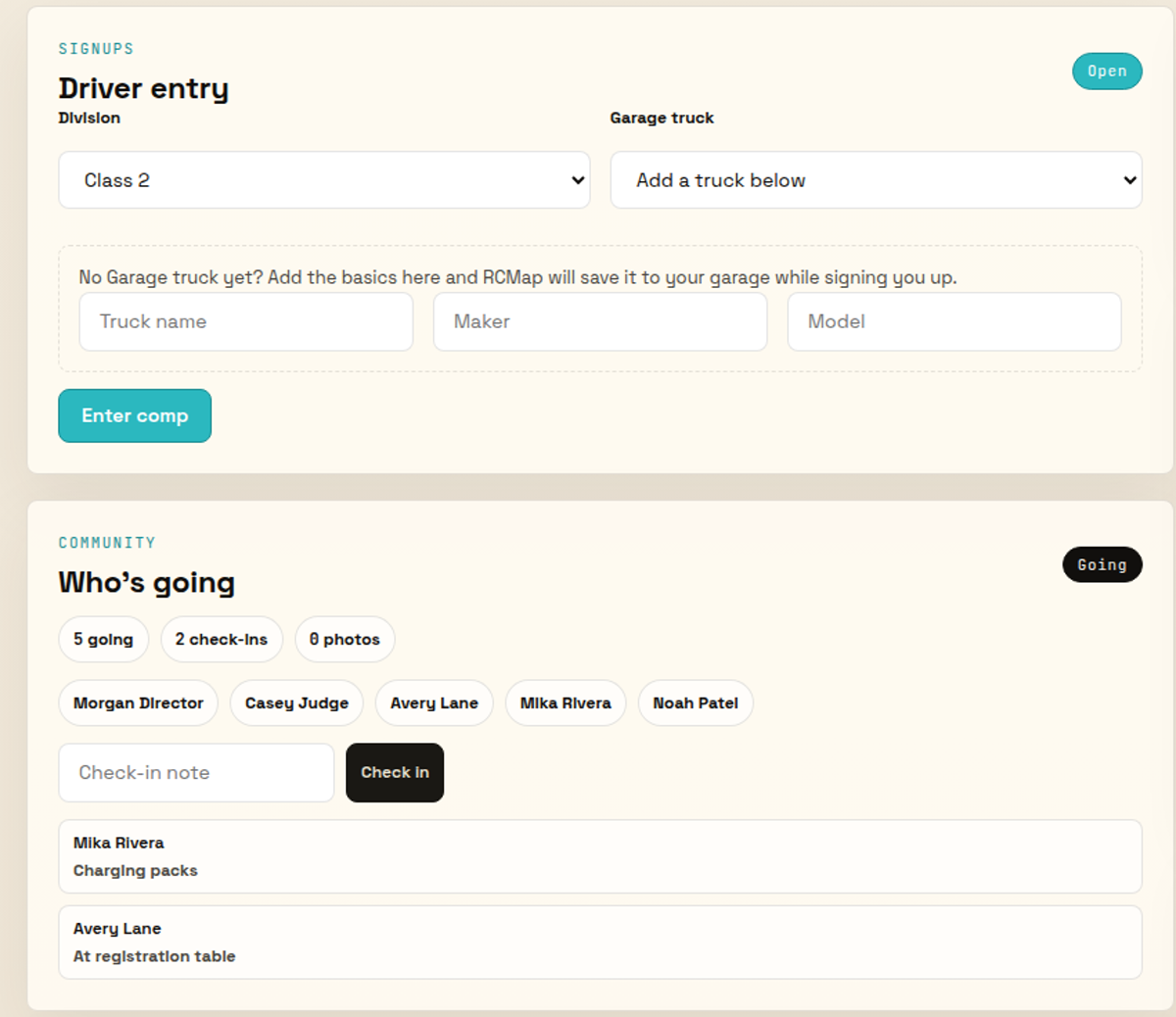
Use the Who's going panel for event-level attendance. Workers can ask drivers to RSVP, add a short check-in note, and confirm who is physically on site.

Use Registered drivers for entry-level check-in. Managers can choose Check in for each entry; drivers can check in their own entry when they are signed in.

Desktop RCMap check-in sections showing Driver entry, Who's going, check-in note, and recent event check-ins.
Real desktop product capture: event check-ins and entry check-ins answer two different questions.
03

Record tech inspection

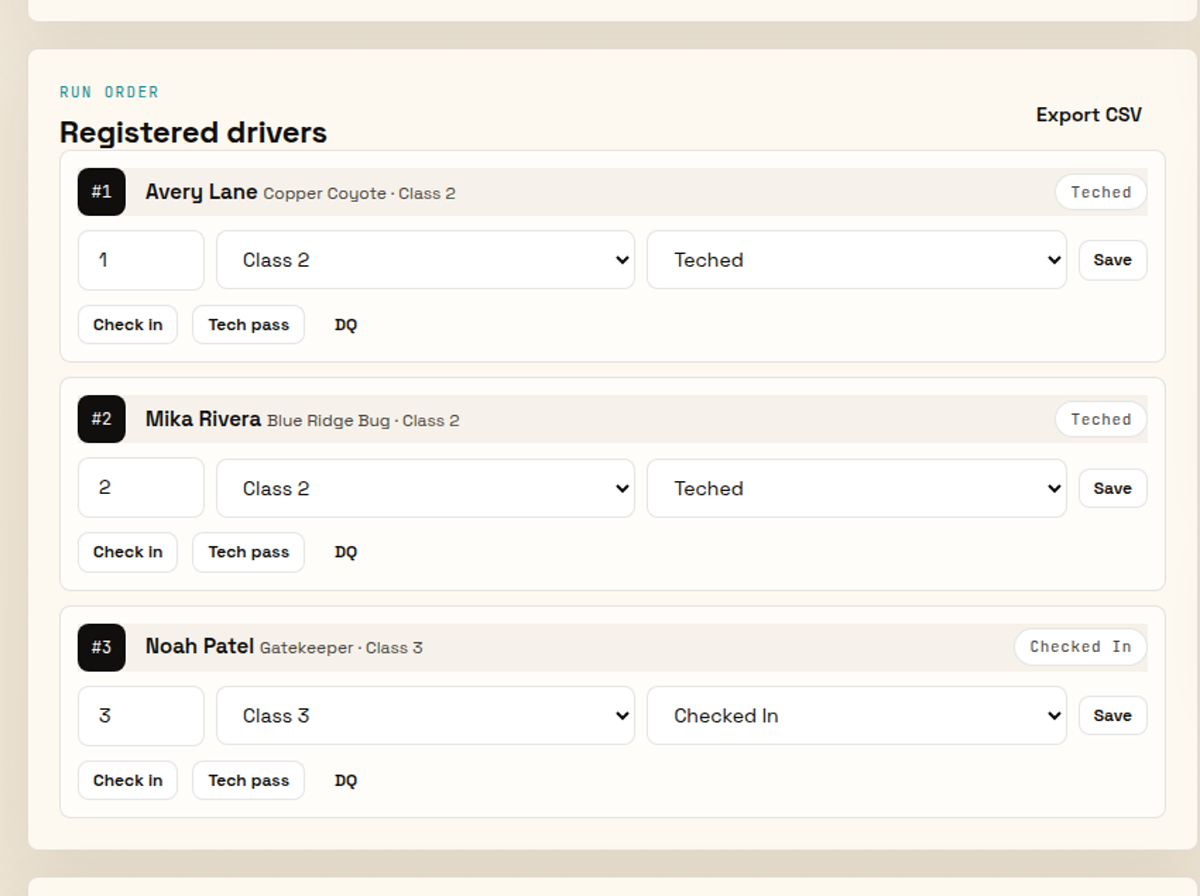
A manager or assigned tech inspector can mark an entry with Tech pass when the truck is eligible for the division.

Choose DQ only when the entry should be removed from active competition. Disqualified and withdrawn entries are excluded from the active run order and standings display.

Desktop RCMap Registered drivers section with entry status selectors, Check in, Tech pass, and DQ controls.
Real desktop product capture: tech inspection updates the entry status before the driver reaches the course.
04

Start each run and record observations

Open Run scoring, find the driver's division and entry, then choose Start run for the correct course. RCMap creates or resumes the run and assigns the current judge.

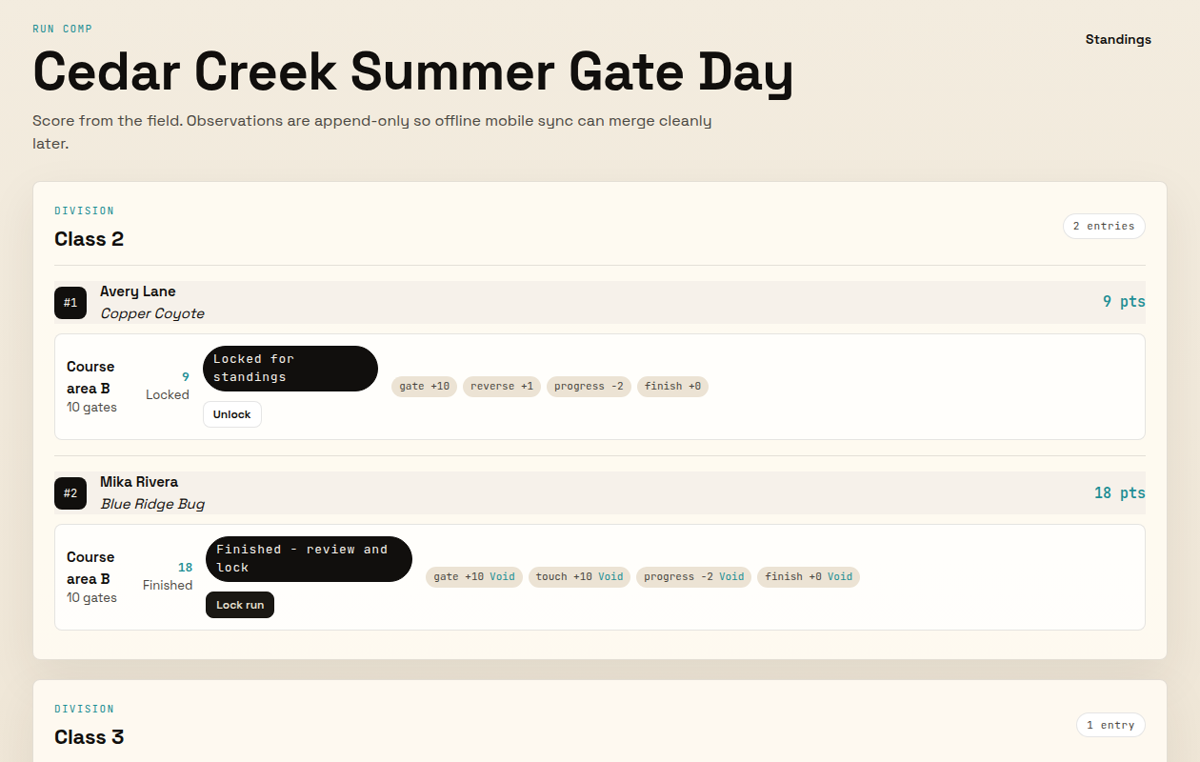
Record each scoring event with the buttons on the run card: Gate, Reverse, Touch, Progress, and Finish. A finish observation ends the run. Review the observation list before locking.

Desktop RCMap Run comp page showing locked, finished, and running entries with observation chips and scoring controls.
Real desktop product capture: judges score from the Run comp page, one entry and course at a time.
05

Monitor live standings and export results

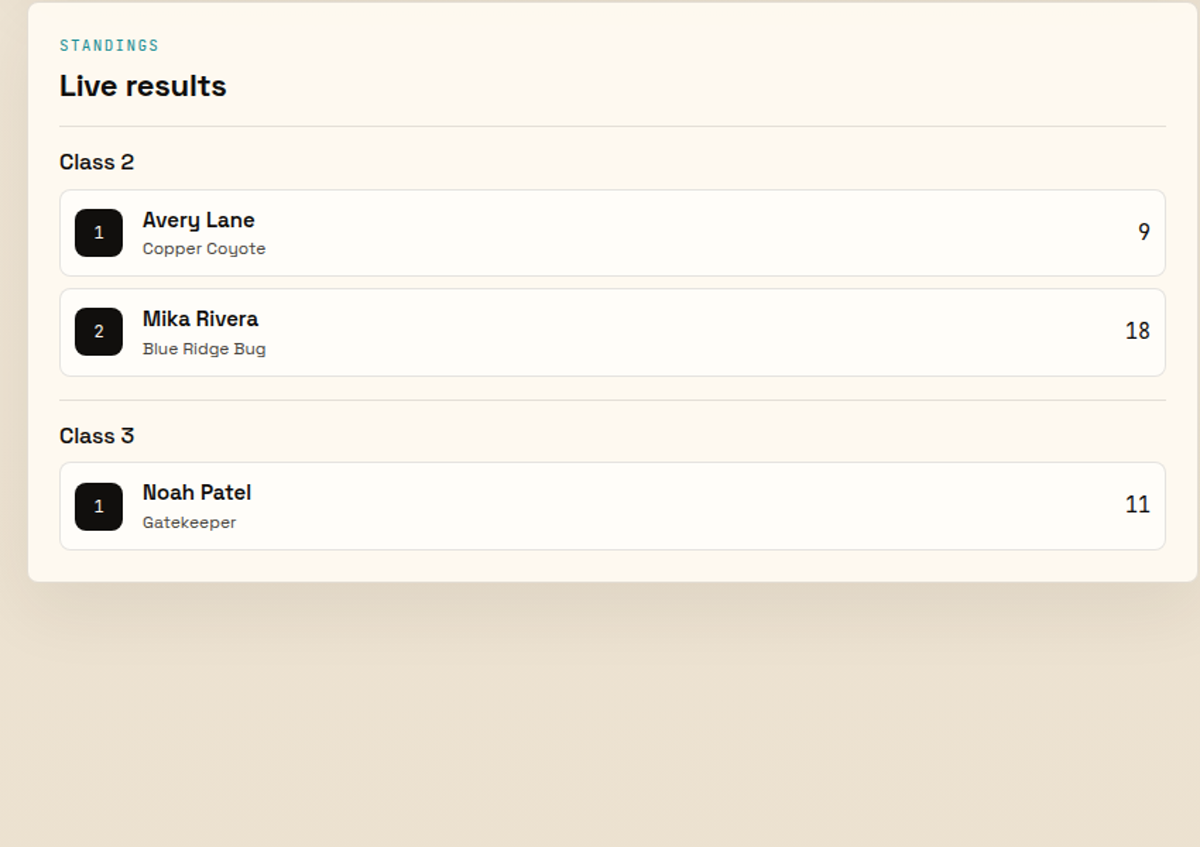
Return to the competition page to review Live results. RCMap groups standings by division and sorts drivers by lowest points, then completed runs, then entry number.

Use Export CSV when you need a spreadsheet copy for announcements, backups, or club records.

Desktop RCMap Live results section showing division standings with driver, truck, rank, and score rows.
Real desktop product capture: live standings update from scored runs and can be exported as CSV.
06

Publish final standings

When every division has been reviewed, choose Publish final. RCMap moves the competition to final status and locks runs that are part of the result set.

Do this after scorekeepers have resolved protests, voided mistaken observations, and confirmed the CSV or public standings match the announced results.

RCMap mobile competition page beside the desktop Run day tools panel with Open registration, Start comp, Publish final, and CSV standings controls.
Real mobile and desktop product captures: Publish final lives in Run day tools after scoring has been reviewed.

FAQ

Who can run scoring on event day?

Club managers, competition organizers, scorekeepers, and assigned judges can open the Run comp page. Managers assign judges and scorekeepers from the competition page before or during the event.

Can drivers check themselves in?

Drivers can check in their own entry when they are signed in. Managers can check in any entry, which is usually faster at a registration table.

What is the difference between event check-in and entry check-in?

Event check-in records who is on site for the event. Entry check-in changes a registered competition entry to checked in so workers know it is ready for tech and run order.

Can a score be corrected after a judge taps the wrong button?

Yes, before the run is locked or the competition is final. Void the mistaken observation from the run card, then record the correct observation. Managers can unlock a locked run before finalization.

What happens when final results are published?

RCMap moves the competition to final status, freezes scoring changes, records the finalized time, and locks runs for the official standings.

What's next